How to Back Up and Prepare Your Device Before a Repair
Ten minutes of preparation makes a repair faster, safer for your data, and less likely to need a second visit.
Most repairs go smoothly. The ones that get complicated usually get complicated for avoidable reasons: no backup, a forgotten account password, or a missing charger. Here is the short version of what to do before you hand a device over — to us or to anyone.
1. Back it up, even for a simple repair
No drive, battery, or board is guaranteed, and a device that is already faulty is the most likely one to lose data. Backing up is not a comment on the repair — it is basic insurance.
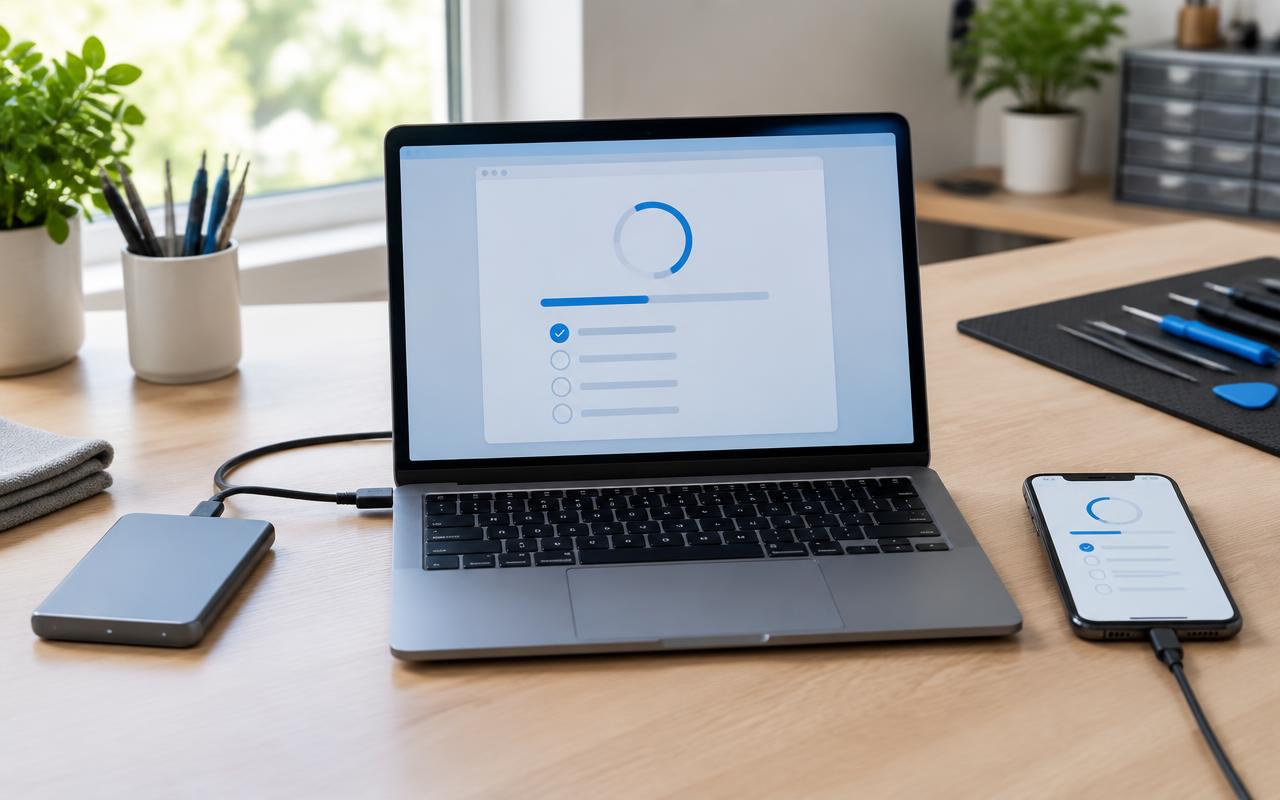
iPhone or iPad: back up to iCloud (Settings, your name, iCloud, iCloud Backup) or to a computer. Check the date afterward so you know it actually completed.
Android or Galaxy: use Google backup, and Samsung Cloud or Smart Switch if you have it. Photos are the thing people miss most — confirm they are actually uploaded, not just "syncing."
Windows computer: copy your documents, photos, and desktop to an external drive or cloud storage. Do not rely on a folder being "in the cloud" without checking.
Mac: a Time Machine backup to an external drive is the simplest complete option.
If the device will not turn on and you have no backup, say so clearly when you contact us. It changes how we approach the repair, and it is much better said up front than discovered later.
2. Know your passwords
This is the most common delay we see. Devices need to be signed back in after a repair to confirm they work, and modern devices are firmly tied to accounts.
Before you come in, make sure you know:
- Your Apple ID email and password, or your Google or Samsung account.
- The device passcode, PIN, or pattern.
- The Windows or Mac login password.
If a device is signed into someone else's account — a phone bought secondhand, a family member's iPad — sort that out first. Without account access, some devices cannot be fully set up or tested after a repair.
3. Turn off theft protection if we ask
Find My iPhone, Samsung's account lock, and Windows device encryption all exist for good reasons and they can also block parts of a repair or test. We will tell you if yours needs to be turned off. If we do, that is a normal part of the process — but you will need your account password to do it.
4. Bring the accessories that are part of the story
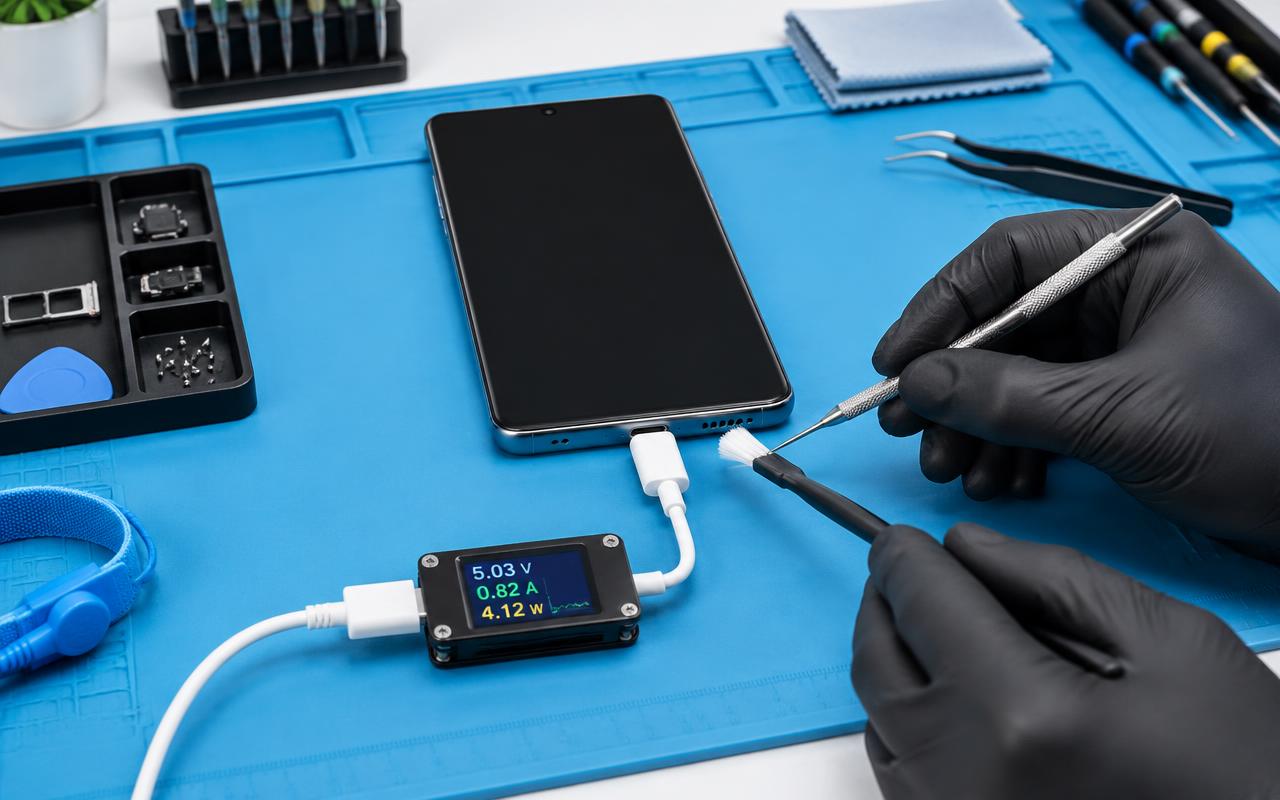
If the complaint involves charging, bring the charger and cable you use. Faulty cables and underpowered adapters are a real cause of "the device is broken," and it saves everyone time to test with the same gear you have at home.
Same for a console: bring the power cable and, if the problem involves video, mention which cable and TV you were using. For a laptop, bring the charger.
5. Take out what does not need to come
- Memory cards and SIM cards, unless the fault involves them.
- Cases, pop sockets, and screen protectors, if they come off easily.
- Games and discs from a console.
- External drives and dongles from a computer.
6. Write down what is actually happening
The single most useful thing you can hand over is a clear description:
- What the device does and does not do.
- When it started.
- What changed around then — a drop, a spill, an update, a new program.
- Whether it happens every time or only sometimes.
- What you have already tried.
"It does not charge unless I hold the cable up and to the left, since I dropped it in June" is worth far more diagnostic time than "it is broken."
7. Sensitive files and privacy
If a device holds work files, financial records, or anything else sensitive, mention it. We do not go browsing through personal files, but if there is something you want kept entirely off the table, it is easier to agree that at the start.
If you are getting rid of an old device rather than repairing it, make sure it is properly erased and signed out of your accounts first — a factory reset on a device still tied to your account is not the same as being clean.
8. Then get in touch
Fill in the repair request form with the device and symptoms, or call and talk it through. Drop-off and pick-up at our service location in Delano are by appointment so your device gets looked at rather than sitting on a shelf, and we accept mail-in repairs from further away.
Ten minutes on this list is usually the difference between a repair that takes one conversation and one that takes four.
Common questions
- Do I need to back up before a simple repair like a screen?
- Yes. No device is guaranteed, and a device that is already faulty is the most likely one to lose data. A backup is cheap insurance.
- Why do you need my device passcode or account password?
- Devices have to be signed back in and tested after a repair to confirm the work. Without account access, some devices cannot be fully set up or verified.
- What if my device will not turn on and I never backed it up?
- Tell us up front. It changes how we approach the repair and which routes are safe to try, and it is much better known at the start.
Worried about your files?
Tell us what matters most on the device before anything else happens. It genuinely changes how we approach the job.
- backup
- data
- privacy
- how it works