Why Is My Computer Running Slow? What to Check First
Start with safe Windows and Mac checks, separate internet problems from computer slowdowns, and recognize warning signs that need professional help.
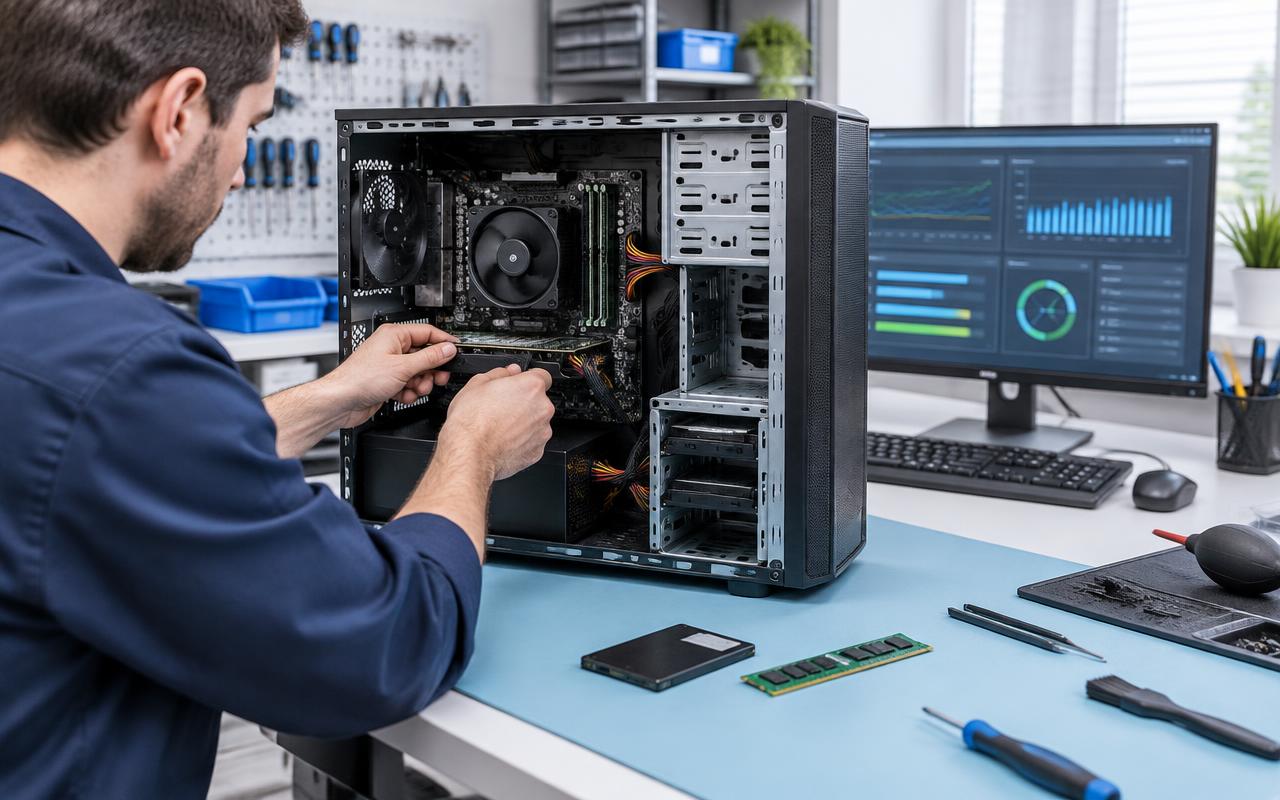
A computer running slow can have several causes: too many apps running at once, limited free storage, background updates, unwanted software, heat, or hardware that no longer fits your workload. Slowness alone does not tell you which one is responsible, and a tune-up is not a guaranteed fix.
Start here: save your work, restart the computer, and check whether everything is slow or only websites are slow. Then work through the low-risk checks below, one change at a time. Back up important files before deeper troubleshooting, upgrades or repair.
When to stop troubleshooting
Stop repeated tests if you hear new clicking or grinding from a drive, see drive errors or corrupted files, or the computer repeatedly fails to start. These symptoms can indicate a hardware problem. If irreplaceable files are not backed up, ask for advice before running disk-repair tools or repeatedly turning the machine on. Tell the technician that protecting your data is the priority.
A loud fan by itself is not proof of a failing drive. But smoke, a burning smell or a visibly swollen battery is a reason to stop using the device and seek help, not to continue performance tests.
1. Is the computer slow, or is it the internet?
Try opening a saved document or an app that does not need the internet. If those work normally but websites take a long time, compare another device on the same network. Slow browsing can come from the connection, the website, browser extensions or the computer itself.
Close extra tabs and try the same page in another up-to-date browser. Do not reset the computer or buy an upgrade based only on one slow website.
2. Restart and check background work
Save open files and use the normal Restart option. If an operating-system update is installing, keep the device connected to power and allow it to finish rather than forcing it off.
After restarting, test the same task again. Note whether the slowdown began after an update, a new app or a change in how you use the computer. This is useful information, not proof that the last change caused the problem.
3. Check free storage without deleting important files
Windows: open Settings, then System, then Storage. Review the storage categories and cleanup suggestions before removing anything.
Mac: on recent macOS versions, open System Settings, then General, then Storage. Menu names differ on older versions; use Apple’s storage guide below if yours looks different.
Review downloads, large files and unused apps. Move files you want to keep to a verified backup before deleting the originals, and check the Recycle Bin or Trash before emptying it. Do not delete system folders or unfamiliar files just because they are large. There is no single free-space percentage that guarantees good performance for every computer.
4. Reduce startup apps you recognize
Windows: open Task Manager with Ctrl+Shift+Esc and review Startup apps. Disable only optional apps you recognize and do not need immediately after signing in. Their names and the layout vary by Windows version.
Mac: review Login Items in System Settings. On recent versions, this is under General, then Login Items & Extensions.
Disabling an optional startup app does not uninstall it. Leave security software, accessibility tools and unfamiliar work-managed software alone unless you understand their purpose. Change one item at a time so you can tell whether it helps.
5. See which apps are using resources
Open Task Manager on Windows or Activity Monitor on a Mac. Check CPU and memory usage while the slowdown is happening. On Windows, disk activity can also help explain a delay.
A brief spike while opening an app is normal. Look for sustained heavy use and record the app name and what you were doing. Save your work and close a known app normally before considering force-quit. Do not stop unfamiliar system processes or services at random.
If memory pressure stays high during your usual tasks, reducing open apps may help. A memory upgrade is an option only if the model supports it; many devices have memory that cannot be upgraded.
6. Check updates and unwanted software
Use the operating system’s built-in update settings and your installed security software. On Windows, Windows Security provides virus and threat scans. Suspicious pop-ups, browser redirects or unfamiliar apps are reasons to investigate, but slowness alone does not prove malware.
Avoid ads for registry cleaners, driver-updater bundles and one-click speed boosters. Never call a number from a pop-up claiming your computer is infected. On a work or school device, contact your IT support before changing security or management settings.
7. Check cooling and hardware before buying upgrades
Use the computer on a firm surface with its vents unobstructed. If performance gets worse as it warms up, or it repeatedly shuts down, arrange an inspection. Heat can have several causes; it does not automatically mean the computer only needs dust removed. Do not open the device or replace thermal paste unless you have the appropriate skills and follow its service guidance.
An SSD can improve storage-related delays on a compatible computer with an older hard drive. It will not fix every slowdown. The right upgrade depends on the model, the current drive’s health and the tasks you need to run. Back up data and check compatibility before making changes.
What to tell a repair technician
- The make and model, and Windows or macOS version if you know it.
- Whether startup, all apps, one app or just websites are slow.
- When it started and whether any software or hardware changed around that time.
- Any error messages, unusual sounds or shutdowns.
- Whether your important files are backed up, and which files matter most.
Computer repair in Delano, Minnesota
DJ’s Electronic Repairs works on desktops and laptops at our Delano service location. Tell us what you have already tried so the diagnosis can focus on what remains. Repair work proceeds only after your approval; an upgrade is not automatically the right answer.
See our computer repair service, request a starting estimate, or read how the repair process works. If you cannot bring the computer to Delano, check the mail-in instructions before shipping it.
Official troubleshooting references
Menu names can change between operating-system versions. These manufacturer guides provide current instructions:
Common questions
- Why is my computer suddenly running slow?
- Background updates, a new app, low storage, unwanted software or hardware trouble can cause a sudden slowdown. Note what changed and use the safe checks in this guide. Drive errors, corrupted files or unusual drive sounds need prompt attention.
- Will an SSD or more memory fix a slow computer?
- Only if storage or memory is the bottleneck and the computer supports the upgrade. An SSD does not fix every slowdown, and some models have memory that cannot be upgraded. Check compatibility and back up important files first.
- Should I factory-reset a slow computer?
- Not as a first step. Start with storage, startup apps, resource usage and built-in security checks. A reset can remove apps and data and will not fix failing hardware. Confirm backups and the cause before considering it.
- Can DJ’s Electronic Repairs check a slow computer in Delano?
- Yes. Request a starting estimate with the computer model, symptoms and what you have tried. Desktops and laptops can be brought to the Delano service location, or use the mail-in instructions before shipping.
Need help with your computer?
We handle tune-ups, cleanups, upgrades, and repairs on desktops and laptops. Tell us what it is doing and when it started.
- slow computer
- tune-up
- ssd upgrade
- windows