Nintendo Switch Won’t Charge? Here’s What to Check
Three things cause almost every Switch charging problem. Here is how to tell them apart at home.
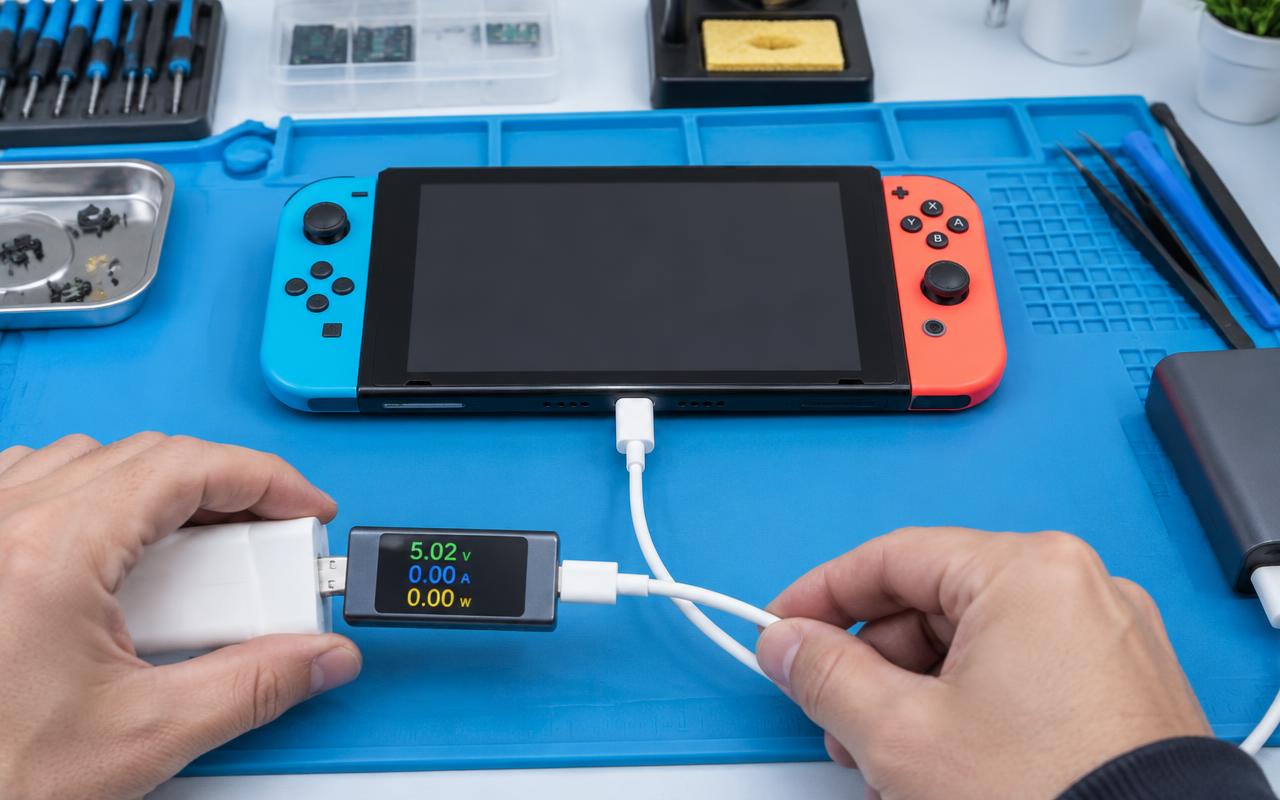
A Nintendo Switch that will not charge is frustrating because the console gives you so little to go on — sometimes a battery icon, sometimes a completely black screen. In practice, nearly every case comes down to one of three things: the charger, the USB-C port, or the battery.
Start here: is it charging at all, or just charging badly?
Two different problems, two different answers.
Nothing at all. Black screen, no charging icon, no response when you press power. Do not assume it is dead — a Switch that has drained completely can take several minutes on a charger before it shows any sign of life. Leave it plugged in for a solid half hour before drawing conclusions.
Charges, but only sometimes. Works if you wiggle the cable, charges in the dock but not handheld, or drops out when you move it. That pattern points at the port or the cable rather than the battery.
Charges, but the charge does not last. If it reaches 100% and then dies quickly, the charging system is fine and the battery is the problem.
1. Rule out the charger and cable
The official Switch power supply delivers more power than a typical phone charger, and many third-party chargers and cables simply cannot keep up — some will not charge the console while a demanding game is running, and a few have caused damage over the years.
Try the original Nintendo adapter if you have it. Try a different USB-C cable. If you normally use the dock, try charging the console directly with the cable, and vice versa — if one works and the other does not, you have narrowed it to the dock rather than the console.
2. Look inside the USB-C port
The port sits on the bottom edge of the console, which means it collects pocket lint, dust, and crumbs. A packed port stops the cable from seating fully, and the console never sees a proper connection.
With the console off, shine a light into the port. If you see grey fuzz, that may be all that is wrong. Clean it gently with a wooden or plastic toothpick — never anything metal, and never while it is plugged in. Then blow out what you loosened.
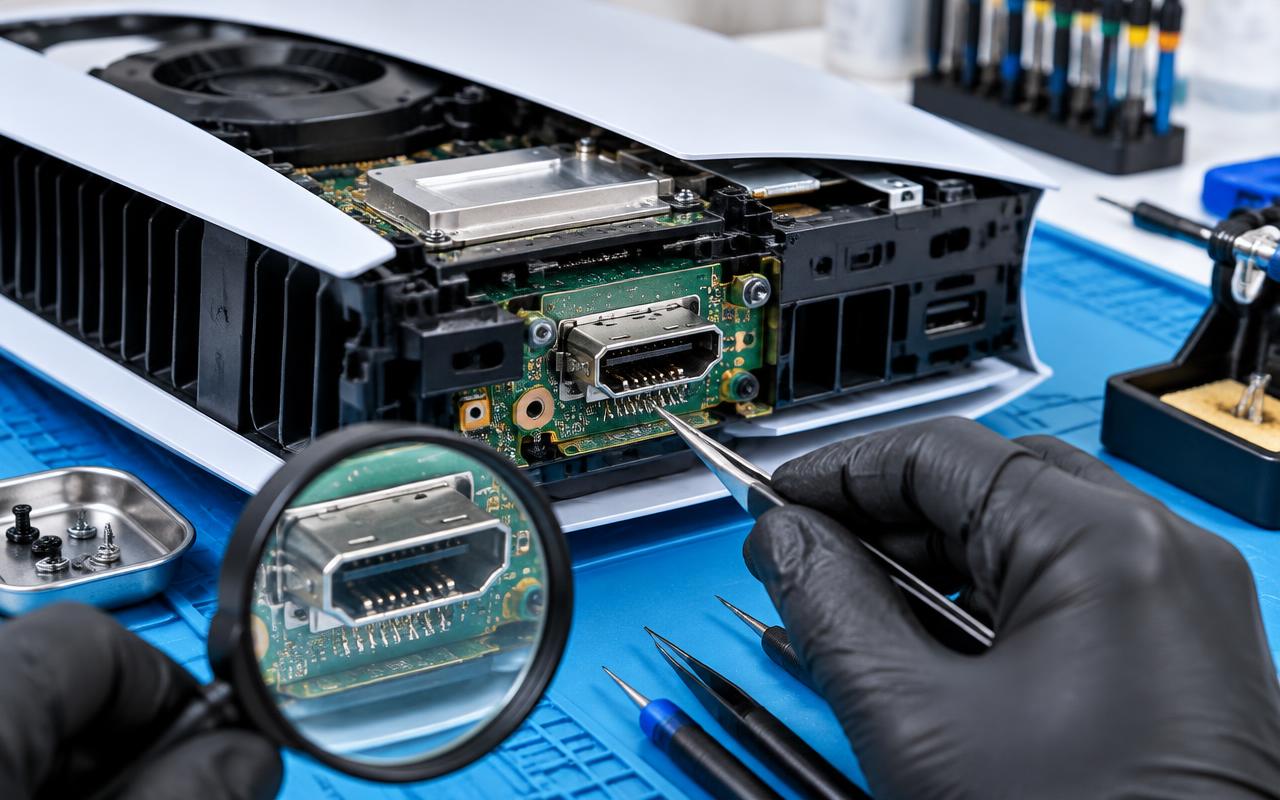
Also check for damage: the small tongue inside the port should sit centred and straight. If it is bent, cracked, or wobbly, or if the cable feels loose and sloppy, the port itself needs replacing. This is a common repair on the Switch, especially on consoles that get docked and undocked constantly, and it means desoldering the old port and fitting a new one.
3. Try a hard reset
If the console is completely unresponsive, hold the power button for about fifteen seconds to force it off, then press it again. On a console that has drained fully and gotten confused, this sometimes brings it back where a charger alone did not.
4. Consider the battery
Switch batteries wear out like any other. After a few years and hundreds of charge cycles, expect meaningfully less play time than when it was new. Signs the battery is the problem rather than the charging path:
- Play time has dropped a long way from what you used to get.
- It shuts off suddenly at 20 or 30 percent.
- It jumps from a healthy figure to nearly empty.
- It only runs while plugged in.
- The console feels swollen or the screen or back has started to lift.
That last one matters. A swollen battery should be taken out of use straight away — stop charging it, keep it somewhere cool, and get it handled properly. Do not press on it or puncture it.
5. Do not forget the dock
If the console charges handheld but not docked, the console is fine. Docks fail — the internal cable, the power board, or a bent pin. Check the dock's connections and try the console's power adapter directly.
What a repair involves
Charging port replacement and battery replacement are both standard Switch repairs and both need the console properly opened. The Switch uses tri-point screws, and there are ribbon cables that are easy to tear if you rush. If you have not done it before, the port work in particular is not a good first soldering project.
Our warranty terms cover this kind of work: batteries carry a one-year warranty, and other internal non-battery repairs are covered for 180 days.
Get it checked
Tell us what your console does — whether it shows any charging icon, whether it works in the dock, and roughly how old it is — and we will tell you whether it sounds like a port, a battery, or a charger. We work on Switch, Switch Lite, and Switch OLED consoles for customers around Delano and by mail-in.
Bring the charger you use with it when you drop it off. It is part of the picture more often than people expect.
Common questions
- Why does my Switch only charge in the dock?
- That points at the console's USB-C port or the cable rather than the battery. Check the port for lint or a bent tongue, and try charging directly with a known-good cable.
- Can a Nintendo Switch charging port be replaced?
- Yes. It is one of the most common Switch repairs. The old port is desoldered and a new one fitted, which needs the console properly opened.
- What should I do if my Switch battery looks swollen?
- Stop using and charging it immediately, keep it somewhere cool, and do not press on or puncture it. Bring it in so the battery can be removed and disposed of properly.
Console still misbehaving?
We clean, service, and repair consoles and handhelds, and test them under load before they go back to you.
- nintendo switch
- charging
- usb-c
- battery